User Guide
              ____        ____
    __(")__  |  _ \ _   _|  _ \ ____
   (__   __) | | | | | | | | | | ___\
     /   \   | |_| | |_| | |_| |\ __/
    (_/ \_)  |____/ \__,_|\____/ \___|
  Sup! I'm Dude!
  What can a brother do for you?
Dude is your friendly task scheduler that is able to maintain a todo list and schedule deadlines or events. Dude is here to help a brother out!
- Quick Start
- Features
- 1. Adding a Todo task:
todo - 2. Adding a Deadline task:
deadline - 3. Adding an Event task:
event - 4. Listing all tasks at hand:
list - 5. Marking a task as complete:
done - 6. Deleting a task:
delete - 7. Finding a task:
find - 8. Exiting the program:
bye - 9. Listing available help:
help - 10. Listing tasks due:
due
- 1. Adding a Todo task:
- FAQ
- Command Summary
Quick Start
- Ensure that you have Java
11or above installed in your computer. - Download the latest
dude.jarfrom here. - Copy the file to the folder you want to use as the home folder for dude.jar task scheduler.
- In command prompt,
cdto the directory of the home folder. - Run the .jar file in the command prompt as follows:
java -jar dude.jar - Type
helpto view commands available. - Refer to Features below for details of each command
Features
Notes about command format:
- Words in bold are parameters to be provided by the user.
- Words in [] are optional parameters.
1. Adding a Todo task: todo
Adds a new Todo task to Dude.
Format: todo task
Example of usage: todo CS2113T Week 7 pre-lecture quiz
Expected outcome:
Got it. I've added this task:
  [T][✘] CS2113T Week 7 pre-lecture quiz
Now you have n tasks in the list.
2. Adding a Deadline task: deadline
Adds a new Todo task to Dude.
To indicate date, ‘.’ and ‘-‘ could be used in place of ‘/’ eg. 28.05.2020 or 21/05/2020.
To indicate time, ‘:’ could be omitted eg. 1800.
Note: The delimiter here is “/by”, and it is compulsory to include it.
Format: deadline task description /by DD/MM/YYYY [HH:mm]
Example of usage: deadline CS2113T iP Submission /by 03/10/2020 23:59
Expected outcome:
Got it. I've added this task:
  [D][✘] CS2113T iP Submission  (by: Oct 03 2020 23:59)
Now you have n tasks in the list
3. Adding an Event task: event
Adds a new Event task to Dude.
To indicate date, ‘.’ and ‘-‘ could be used in place of ‘/’ eg. 28.05.2020 or 21/05/2020.
To indicate time, ‘:’ could be omitted eg. 1800.
Note: The delimiter here is “/on”, and it is compulsory to include it.
Format: event task description /on DD/MM/YYYY [HH:mm]
Example of usage: event Google Hackathon /on 27/10/2020 10:00
Expected outcome:
Got it. I've added this task:
  [E][✘] Google Hackathon  (on: Oct 27 2020 10:00)
Now you have n tasks in the list
4. Listing all tasks at hand: list
Lists all the current tasks at hand.
Example of usage: list
Expected outcome:
1.[T][✘] CS2113T Week 7 pre-lecture quiz
2.[D][✘] CS2113T iP Submission (by: Oct 03 2020 23:59)
3.[E][✘] Google Hackathon (on: Oct 27 2020 10:00)
5. Marking a task as complete: done
Marks a user-specified task as done.
Note: Index keyed in must be within the range of 1 - n, where n is number of existing tasks.
Format: done index
Example of usage: done 1
Expected outcome:
Nice! I've marked this task as done:
[✓] CS2113T Week 7 pre-lecture quiz
6. Deleting a task: delete
Deletes a user-specified task.
Note: Index keyed in must be within the range of 1 - n, where n is number of existing tasks.
Format: delete index
Example of usage: done 1
Expected outcome:
Got it brother! I've removed this task:
[T][✓] CS2113T Week 7 pre-lecture quiz
 Now you have n tasks in the list.
7. Finding a task: find
Locates all instances of tasks that contains the user-specified keyword
Note: The search is case-insensitive eg.
cs2113twill matchCS2113T
Format: find CS2113T
Example of usage: find CS2113T
Expected outcome:
Here are the matches found!
 1. CS2113T iP Submission (by: Oct 03 2020 23:59)
8. Exiting the program: bye
Exits the program, triggering automatic saving of data
Example of usage: bye
Expected outcome:
Goodbye. Sad to see you leave!
 Hope to see you again soon!
9. Listing available help: help
Lists a set of commands available to users
Example of usage: help
Expected outcome:
Here are the range of commands:
1.todo
 Command used to record impending tasks
 For "todo", kindly input in this format: *todo* *description*
.
.
.
9.help
 Command used to list all available commands
 No additional info needed!
10. Listing tasks due: due
Lists all tasks due on a user-specified date
Note: use “today” to check tasks due today
Example of usage: due 28/10/2020 or due today
Expected outcome:
Here are the tasks due on the specified date!
 1. CS2113T iP Submissions (by: Oct 03 2020)
FAQ
Q: The storage file is not created in the same folder as dude.jar. What shall I do?
Do remember to
cd *directory of home folder*as stated in Quick Start point 4.
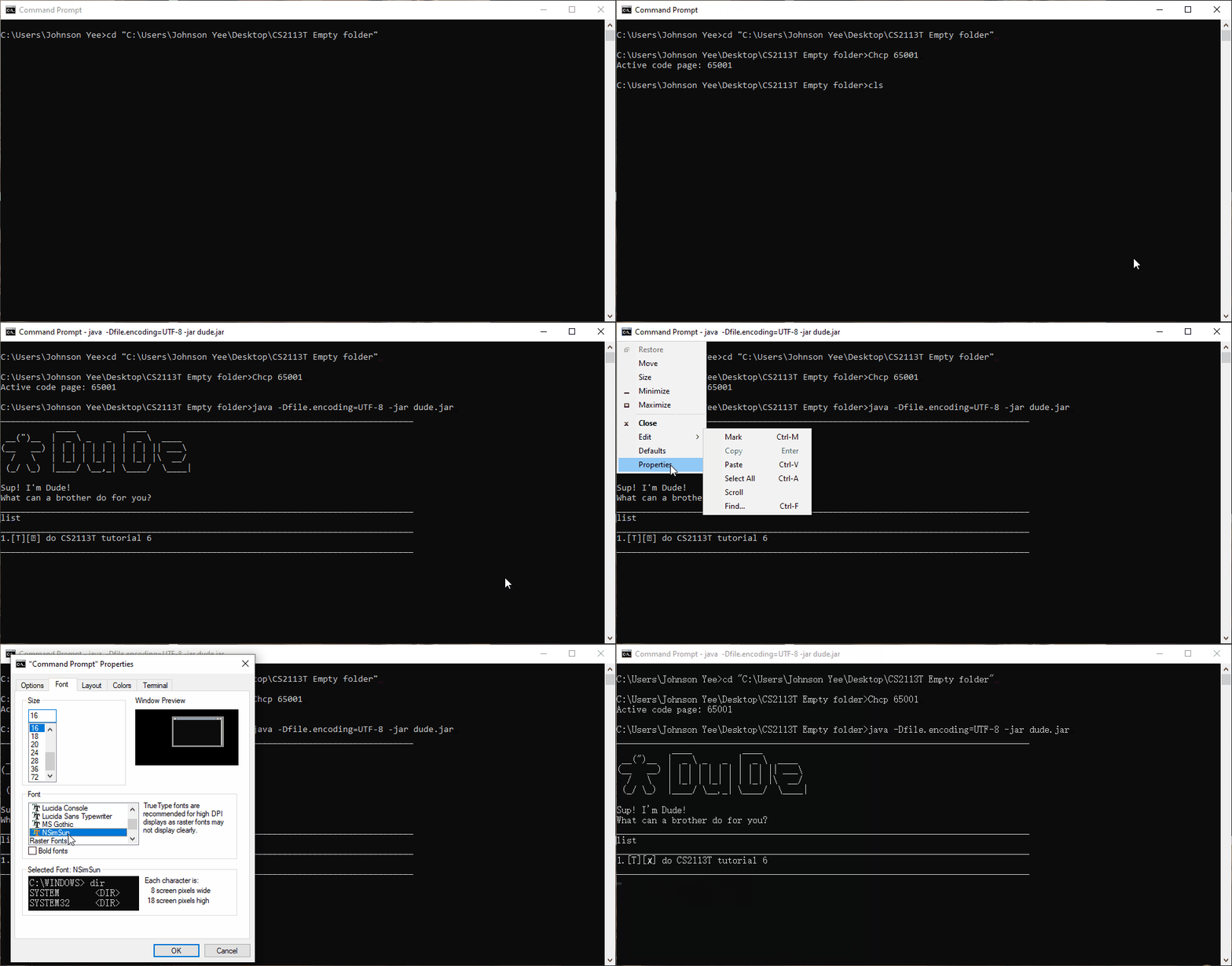
Q: How do I rectify the problem of my ticks and crosses being displayed as ??
Follow this 3-step rectification:
1.In command line, run
Chcp 65001.
2.To run .jar file, inputjava -Dfile.encoding=UTF-8 -jar filename.jar.
3.In system settings of command prompt, change font to NSimSun
Command Summary
Note: No additional parameter is needed if it is not mentioned. eg help
| Command | Format | Example |
|---|---|---|
| todo | todo task description |
todo CS2113T Pre-lecture Quiz |
| deadline | deadline task description /by dd/mm/yyyy [HH:mm] |
deadline Complete CS quiz /by 20-10-2020 |
| event | event task description /on dd/mm/yyyy [HH:mm] |
event Google Hackathon /on 26/10/2020 18:00 |
| list | list |
list |
| done | done task index |
done 1 |
| delete | delete task index |
delete 2 |
| find | find keyword |
find cs2113t |
| bye | bye |
bye |
| help | help |
help |
| due | due |
due dd/mm/yyyy OR due today |